
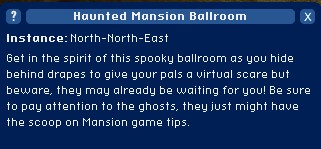
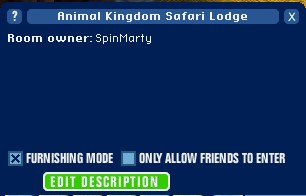
 | The Info button will tell you information about any room that you are in, in both public and personal areas. Instances are like different dimensions of the same room. In your own room the Info button allows you to edit the name and description of your room as well as select "furnishing mode" and "friends only" mode. |
 | The Travel button accesses the VMK Map, from which you can teleport to any public place listed on the map. This is often quicker than walking from room to room. |
 | The Stuff button shows you just that, your stuff! These are the items that you have with you, not placed in a room. From this screen you can view your Credits, Furnishings, Pins, Clothing and Posters. This is also where you can enter the secret codes from cards, games, etc. |

 | The Mail button accesses your personal messages and Friends list. When you get a message or a friend request, a tone will sound and the button will flash to get your attention. |
 | From this screen you can shop for both items and rooms. The "Specials" section of each shop, however, is only accessible when you are actually in the shop specified. |

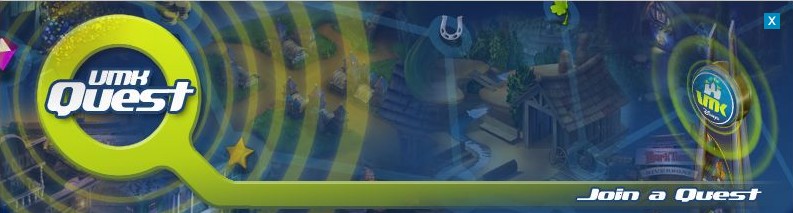
 | This button accesses the In-Game Quests. Choose a quest and earn prizes. |
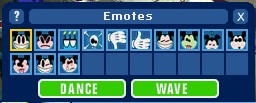
 | Emotes are a fun way to express yourself. Click on the emote that best reflects what you wish to show and that image will show above your character's head.
The emotes are (left to right): Smile, Frown, Birthday Cake, Poison, Thumb Down, Thumb Up, Very Happy, Tongue Sticking Out, Sleeping, Surprise, Raspberry, Wink, Sad
Actions include dancing and waving. Double click to do either action. To stop dancing, double click again. |
Chat Box
| This is where you can type text to chat with other players. See the chatting in game section to learn more. |

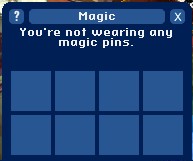
 | Use this button to access the magic buttons. Read the section on Using Magic Pins to learn more. |

 | This button accesses your Character screen. When you are ready to start editing preferences with regards to your character's clothes, hair style, and skin color, use this button |
 | This button accesses your Preferences screen. From here you can edit your preferences such as sounds, volume, turn on/off trade requests, as well as show how many Hidden Mickey's you have found. |
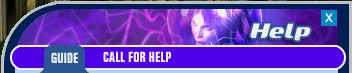
 | This button accesses both the guide (information that is brought up when you click the question mark) as well as the Call for Help screen. Use the Call for Help option if you need to report a problem within the game. |
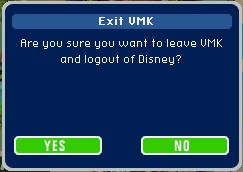
 | Clicking this allows you to exit the screen you are in and quit the game. |
History
As VMK was being promoted before its opening, waiting players found this toolbar on the teaser images:

Icons included: Info, Travel, Stuff, Mail, Emotes, Text, Magic, Camera, Preferences, Help, and Exit.
When VMK opened to the public on 27 June 2005, some button graphics were updated and the Shop button was added:

Icons included: Info, Travel, Stuff, Mail, Shop, Emotes, Text, Magic, Camera, Preferences, Help, and Exit.
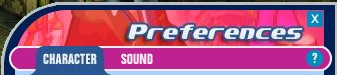
The Preferences button offered two tabs: Character for clothing and message, and sound control.
4 April 2006 introduced the in-game Quest and the Q button was added to the toolbar, sacrificing some of the Text area:

On 2 October 2006 the toolbar was changed again: Preferences was split into Character and Settings. To maximize the Text area, the Exit button was shortend from the word 'Exit' to 'X', the 'Q' button was made noticeably smaller, and all the buttons were tightend up to save space.

 . Click the Question Mark if you want more information.


 Icons included: Info, Travel, Stuff, Mail, Emotes, Text, Magic, Camera, Preferences, Help, and Exit.
 Icons included: Info, Travel, Stuff, Mail, Shop, Emotes, Text, Magic, Camera, Preferences, Help, and Exit.
The Preferences button offered two tabs: Character for clothing and message, and sound control.
Icons included: Info, Travel, Stuff, Mail, Shop, Emotes, Text, Magic, Camera, Preferences, Help, and Exit.
The Preferences button offered two tabs: Character for clothing and message, and sound control.

