Changing your "My Fairy Page"
 |
The "My Fairy Page" shows other fairies information about your fairy. For information, visit My Fairy Page.
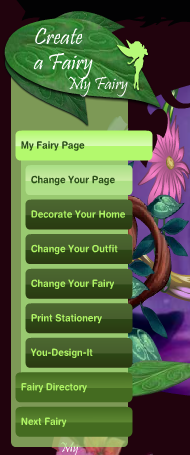
Editing your "My Fairy Page" couldn't be simpler. To start customizing your "My Fairy Page", look at the directory on the left and click "Change Your Page".
|
Sections
When editing your profile, you'll notice that it is split into 7 sections, My Profile, My Activities, My Music, My Icon, My Quiz, My Poll, and My Page Color. Each one is explained a bit more below.
My Profile
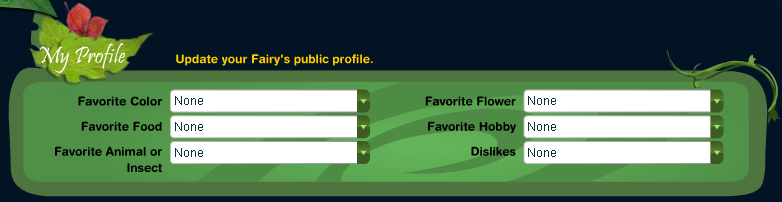
Your profile is the first thing besides your home itself that can be seen on your "My Fairy Page". This section displays some of your fairy's favorites such as Color, Food, Animal or Insect, Flower, and Hobby. Also displayed here is your fairy's top dislike. When updating your "My Profile" section, you can only choose from the provided premade options. To set your favorites and dislikes, simply open the dropdown menu and choose the one you want.
| Section name | Choices |
| Favorite Color | | |
| Favorite Food | | |
| Favorite Animal or Insect | | |
| Favorite Flower | | |
| Favorite Hobby | | |
| Dislikes | | |
My Activities
 |
Though this shows up in the My Profile section on your homepage, it is a different section on the edit page. You can choose 3 activities from the list they have available. To select them, simply open the dropdown list and click on the one you want
|
| Activities |
- DisneyFairies.com home page
|
- Fairy Dust and the Quest...
- Vidia and the Fairy Crown
- Beck and the Great Berry Battle
|
My Music
My Music isn't a visible feature of "My Fairy Page", but instead plays in the background. Each piece of music reflects a certain feature of nature, such as a peaceful river or a summer's breeze. To listen to one, simply select it from the drop down list and click preview. |  |
My Icon
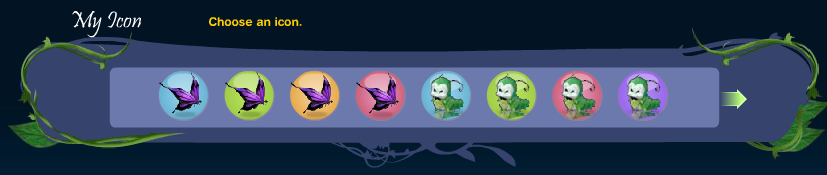
The icon you select shows up at the top of your page, beside your Fairy's name and address. There are 8 different icons in 4 different colors each which can be found below. To add one of these as your icon, simply click on it.
| Set 1 | Set 2 | Set 3 | Set 4 | Set 5 | Set 6 | Set 7 | Set 8 |


 | 


 | 


 | 


 | 


 | 


 |
|
|
My Quiz
 |
In your "My Fairy Page", the quiz is shown on the right side underneath your poll. To pick one, simply goto the My Quiz section and select the one you want from the drop down list. | }
My Poll |
In your "My Fairy Page", the quiz is shown on the right side, right beside the "My Profile" section. To select a poll, just pick one from the drop down list.
| }
My Page Color
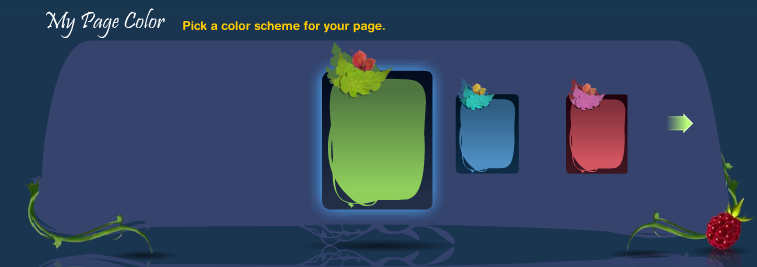
My page color is a somewhat of a key feature of your "My Fairy Page", since it is the base for everything in your page. To pick one click on it, and to view more options use the green arrows on either side.
My Page Color Options
Finishing up
When you're finished filling out the areas and are sure you have put in what you want at that time, click the save button.
|  |
Tink's Tips
 |
|