Step 1: Choose Which Type of Item to Dye
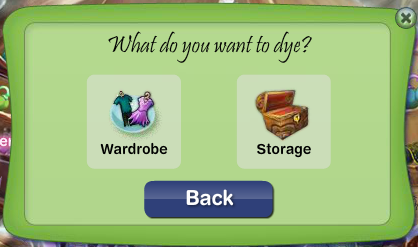 |
- The first thing to do is select whether you want to dye a wardrobe item (Shirts, Skirts and Trousers, Belts, Headpieces, Necklaces, Bracelets, Anklets and Shoes) or a storage item (Furniture, Lamps and Decorations). Click on an item type you want from the drop-down menu.
|
Step 2: Choose an Item to Dye
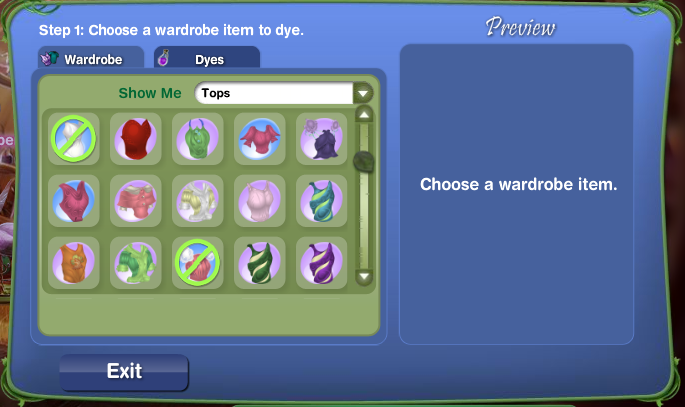 |
- Next you want to select the individual item you wish to change the color of -- or re-dye. Most items found in your wardrobe and storage you are able to re-dye; however, there are a few -- such as Clickables items -- that you cannot. These items will appear having a circle with a slash through it.
|
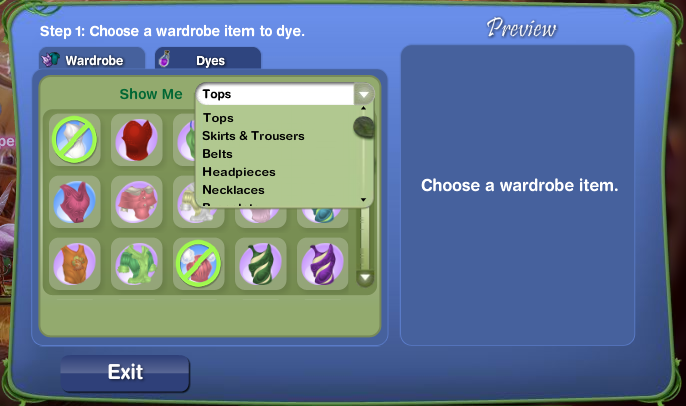 |
- Use the dropdown menu to select which type of item you wish to work on. When you have found the item you want, click on it and it will then appear in the Preview window, located on the right.
|
Step 3: Choose a Dye
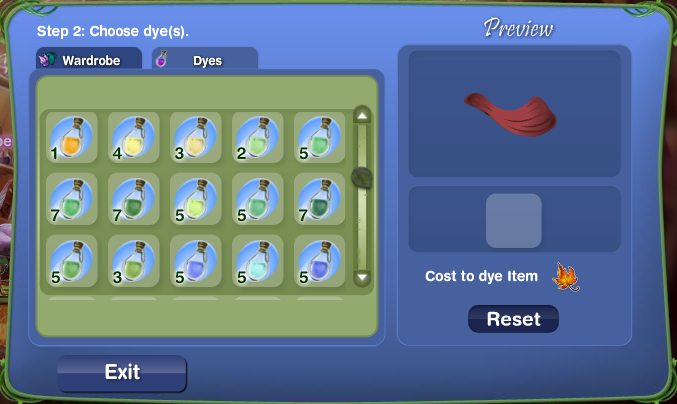 |
- You will now be shown all of the available dye colors from your pouch. You must first purchase the Bottle of Dye in order for it to appear in this window.
|
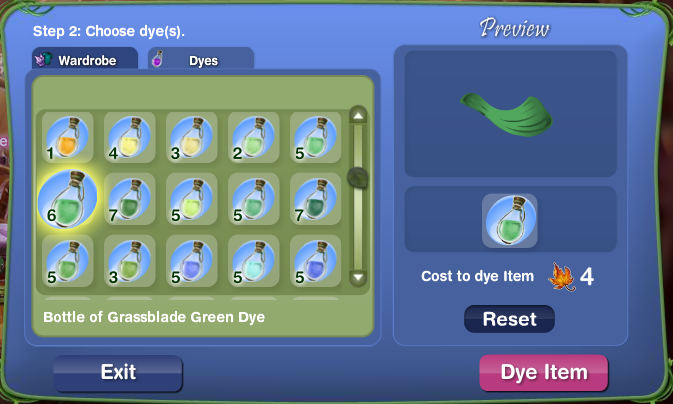 |
- Click on the color you want to dye your item and a sample of what it will look like in that color will appear in the Preview window. If you are unhappy with your choices after previewing, you can always click on the Reset button and start over.
|
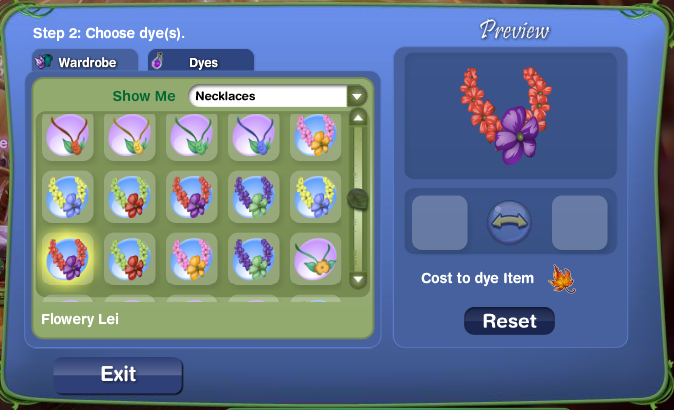 |
- When dyeing an item that requires two colors, you have more options!
|
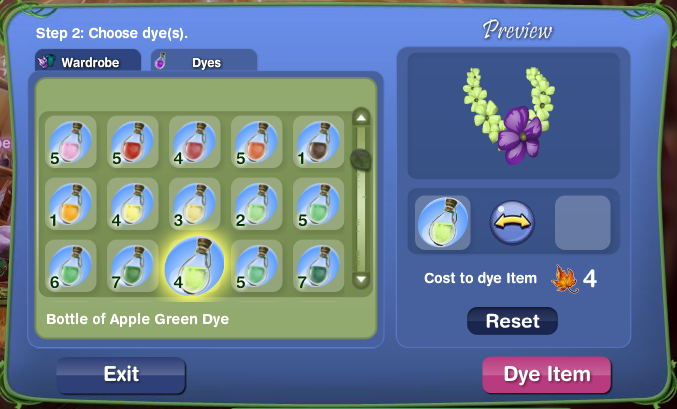 |
- Select the first color you wish to use by clicking on it.
|
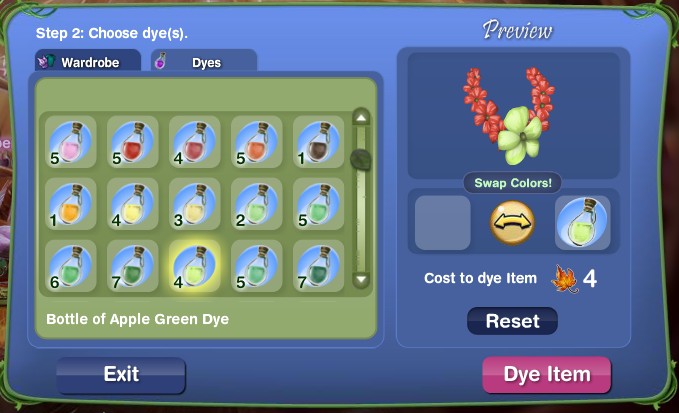 |
- In order to use a second color choice, you must first move the first color into the second position by clicking on the Swap Colors button.
|
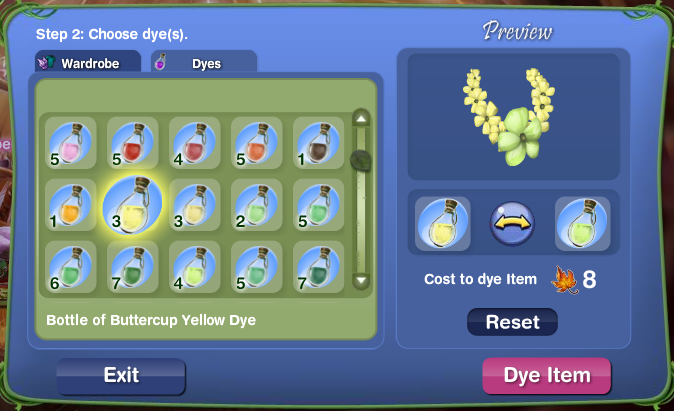 |
- You can then select your second color choice.
|
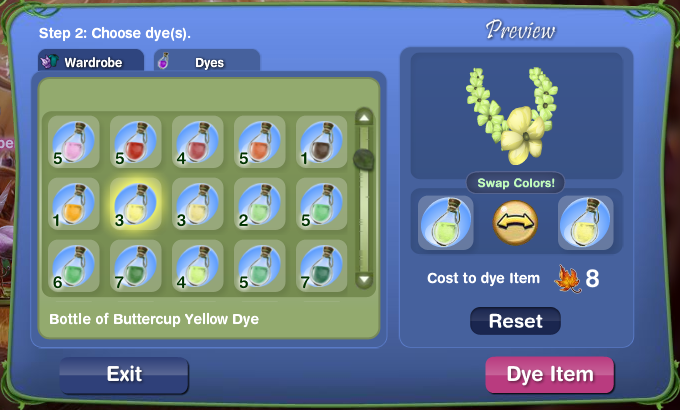 |
- If you want to reverse the positions of the dye bottles, click on the Swap Colors button again. A preview of the item using the dyes in this order will then appear. When you are happy with your selections, click on the Dye Item button.
|
Step 4: Dye Your Item
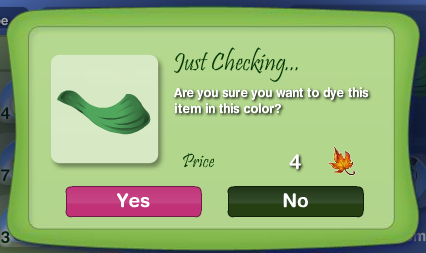 |
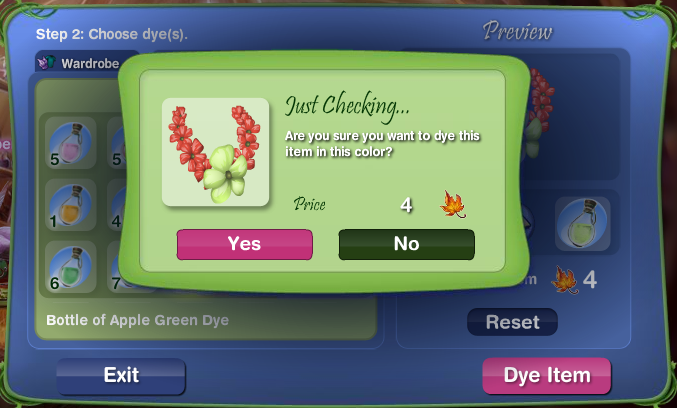
- After clicking on the Dye Item button, a pop up window will appear asking you if you are sure you want to continue. When dyeing an item a single color, it will cost you 4 Raspberries at Daisy's Dyes.
|
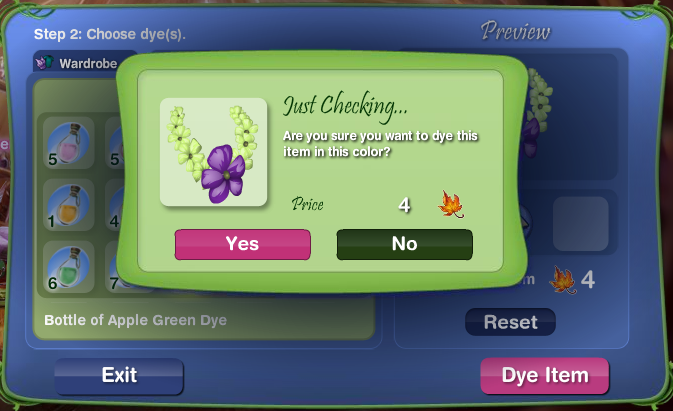 |
- When dyeing an item that is two-toned, you do not have to change both colors if you do not want to. You can opt to change the first color only and it will cost you the price of dyeing a single toned item (4 ingredients).
|
 |
- You can also opt to change only the second shade of a two-toned item. To do this, select your first dye color and then click on the Swap Colors button to move the bottle to the second position. Next, click on the Dye Item button. You will be asked to confirm your choices.
|
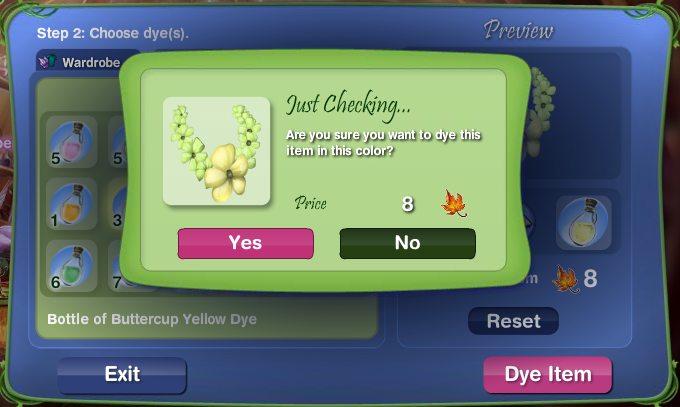 |
- If you are changing both colors of a two-toned item, it will cost you 8 Raspberries. Again, it will ask you to confirm your selections.
|
Finished Product
 |
- If you have selected a wardrobe item, you will then be asked if you want to wear your new clothes after completing your dye job.
|
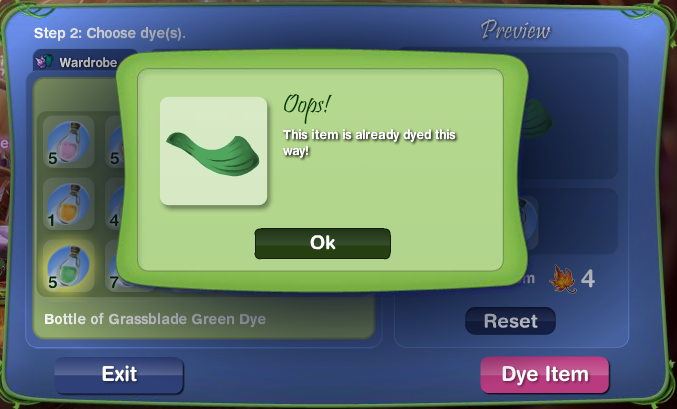 |
- If you try to dye an item the same color it already is, you will receive this message.
|
History
Before 7 September 2012
Prior to the closing of
Colette's Colors,
Prism's Paints and
Sunny's Shades on 7 September 2012, each dye shop charged a different ingredient.
Colette's Colors charged
Snowflakes,
Prism's Paints charged
Maple Leaves,
Sunny's Shades charged
Sunflower Seeds and
Daisy's Dyes used to charge
Daisy Petals.
Before 30 June 2011
On 30 June 2011, the ability to dye storage items was added. Prior to this, the option in shops looked like this.